
Floor and Tiles · Documentation
The PlannerBeta
The floor from above, tile by tile: select tiles, give them material IDs, paint, fill, remove, move the pattern's origin and drag borders. Opened with Planner (beta)… under the Areas list.
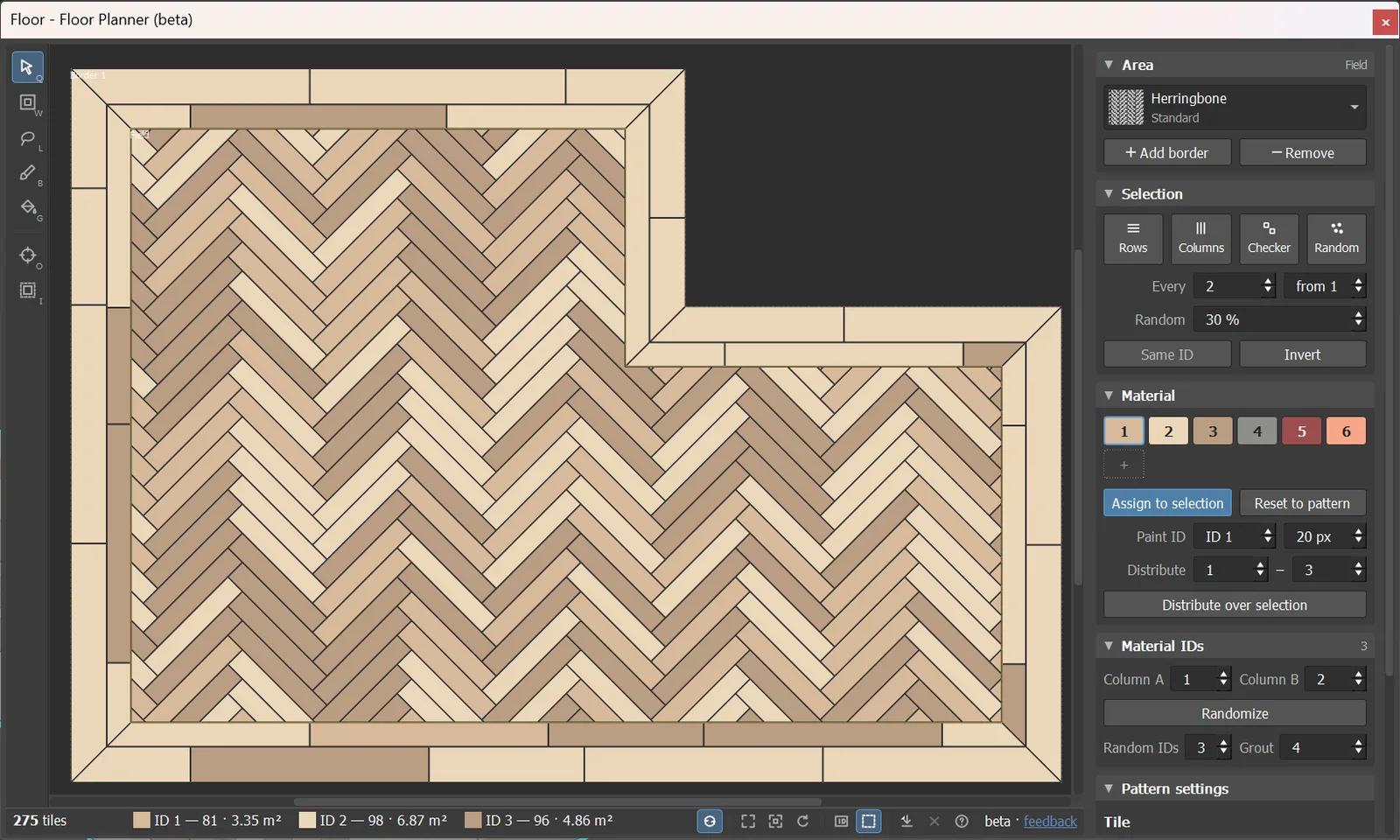
Tiles are drawn in the colours of the scene material when the object has a Multi/Sub-Object; otherwise each ID gets a colour of an architectural palette. Joints are drawn in the colour of the ground, the hovered tile and the selection are ringed, and each area is named on the plan. While zoomed in, a mini-map in the corner shows the whole floor: click or drag it to move the plan.
Wheel zooms, middle button pans. The window stays open when the object is deselected and closes when it is deleted. Objects with several floors, and Volume Tiles rooms, get one tab per floor or surface. A guided tour runs the first time the window opens; ? in the view bar starts it again.
Tools
Down the left edge of the plan. The letter is the key that picks the tool.
| Tool | Description | |
|---|---|---|
 | Select tiles (Q) | Click a tile, or drag a band over several. Ctrl adds, Shift toggles. A click off the floor clears the selection. |
 | Select areas (W) | Clicking a tile selects its whole field or border. |
 | Lasso (L) | Draw round tiles to select them. Ctrl adds, Alt removes. A click without drawing clears the selection. |
 | Brush (B) | Paints the Paint ID onto tiles under the brush. Ctrl removes tiles instead. [ and ] change the brush size. A tag at the cursor shows the brush's ID and colour. One undo step per stroke. |
 | Fill (G) | Click a tile: it and every tile joined to it with the same ID take the Paint ID. |
 | Pattern origin (O) | Shows the origin as a gizmo: drag the middle to move the pattern, the ring to rotate it. Snaps to outline corners and side midpoints; Alt turns snapping off, Shift rotates in 5° steps. Sets Origin X / Y and Rotation. |
 | Isolate (I) | Only the current area's tiles can be selected or painted; the others are faded. |
View bar and status line
Under the plan: the status line on the left (tile count and, per ID, the count and area of its tiles), the view tools on the right.
| Control | Description | |
|---|---|---|
 | Live | Redraws the 3ds Max views after every change. Off, they catch up when next drawn: faster on big floors. On by default. |
  | Fit (F) / Zoom to selection (Z) | Puts the whole plan, or the selected tiles, in the window. |
 | Turn 90 degrees | Turns the view a quarter turn. The view only: the floor is not changed. |
 | Show IDs | Writes each tile's material ID on it. |
 | Mark tiles set by hand | Draws a light edge round every tile changed by hand. |
 | Export Current Layout | PNG image, SVG drawing (a group per ID), DXF drawing (a layer per ID, closed polylines) or CSV count by ID. |
 | Clean up | Forgets edits left on tiles that no longer exist after a pattern change. |
 | ? | Starts the guided tour. |
Mouse and keys
| Input | Action |
|---|---|
| Shift+click | Selects the tile's row along the pattern; Ctrl+Shift adds it to the selection. |
| Alt+click | Picks the tile's ID into the Material field. |
| Double-click | Opens the tile's row (its field or border) in the panel. |
| Q, W, L, B, G, O, I | Select tiles, select areas, lasso, brush, fill, pattern origin, isolate. |
| F, Z | Fit, zoom to selection. |
| [ and ] | Smaller and larger brush. |
| 1–9 | Gives the selected tiles that material ID. |
| Delete | Removes the selected tiles. |
| Esc, Ctrl+D | Clears the selection. |
| Ctrl+A, Ctrl+I | Selects all, inverts the selection. |
| Ctrl+Z, Ctrl+Y | Undo, redo. |
The keys are the window's own: they work while the Planner has the focus, and a click on the plan gives it the focus. Max keeps its shortcuts everywhere else.
Panel
On the right, in folding sections; a folded section shows a line of what is in it.
Area
| Control | Description |
|---|---|
| Pattern | The pattern of the selected tiles' area, or of the open row, as a picture: click it for the grid of every pattern and variation. The wheel over it steps through the patterns. |
| Add border / Remove | Splits a border off this row's edge, or removes the row (its ground goes to the area inside it). |
| Each tab on its own | Volume Tiles and Tile every surface only. Opening a tab gives that surface its own copy of the settings, marked #n. Off, the tab edits the settings shared by every surface; Own settings gives one surface its copy on demand. On by default. |
Selection
| Control | Description |
|---|---|
| Rows / Columns | Every Nth row (along the pattern) or column (across it), from the one given. Follows the pattern's rotation. |
| Checker | Every other tile, as a checkerboard. |
| Random | A random share of the selected tiles, or of the whole floor; the share is set in %. |
| Every, from | The step and the start for Rows and Columns. |
| Same ID | Every tile with the same material ID as the selection. |
| Invert | Inverts the selection. |
Material
| Control | Description |
|---|---|
| ID chips | One chip per material ID, in its colour; 1–6 are always there, + adds the next ID and paints with it. Click: give the ID to the selected tiles. Ctrl+click: select every tile with it. Right click: remove the ID. |
| Assign to selection | Gives the selected tiles the chosen ID. |
| Reset to pattern | Puts the selected tiles, or the whole floor, back to the pattern's own IDs. |
| Paint ID, size | The ID the brush and Fill paint, and the brush size in pixels. |
| Distribute, range | Gives the selected tiles, or the whole floor, random IDs from the range: Distribute over selection. |
| Remove tiles | Removes the selected tiles from the floor (Delete). |
Material IDs, Pattern settings, Borders
The same rollouts as in the Max panel, for the part of the floor in the window: Material IDs (the IDs per piece, Randomize, Random IDs, Grout), Pattern settings (the pattern's sizes, padlocks, Rotation, Origin X / Y, Scale, grouped as in the rollout) and Borders (band width, inset, corners with their pictures, Lay along the outline, Follow the outer border). Same spinners, units and undo as in the panel.
A border's inner edge is drawn as a handle on the plan. Dragging it sets Band Width; Ctrl snaps to whole units. For a row with a typed inset the outer edge is drawn in blue and sets Band Inset.
Tiles set by hand
Edits are saved with the row and the scene and can be undone. They are not included in presets. Edits survive changes to the outline and sizes. After a pattern change the edits are kept until the old pattern returns or Clean up forgets them.